10 FAQ
10.1 How to configure Camera Culling Mask
You can configure Culling Mask property in LeftEye and RightEye Camera in Pvr_UnitySDK.
- If you have integrated with Cardboard SDK and also used toggle culling mask option, you can modify Camera property directly to complete the steps.
- If you need to modify “toggle culling mask”in the code, then refer to the modification method of regular cameras.
- When RightEye and LeftEye cameras need to look at different objects, you can control the layer display, with the Culling Mask of the RightEye and LeftEye cameras in PicoVR, then don’t check right-eye object’s layer in leftEye camera’s Culling Mask nor lefteye object’s layer in the culling mask of RightEye camera.
10.2 How to implement exit functionality in PicoNeo
Developers can implement this functionality by themselves or find QuitGame.cs script in the AssetsPicoVRSDKScripts directory of the SDK and drag it onto GameObject of PicoVR, then users can quit by pressing return key when the game is running. Please note that in this case, developers should release the resource dynamically loaded by the game or app.
10.3 How to apply sensor to other objects in the scene
Follow the steps below to configure it:
- Uncheck PicoVRHeadTrack script for Head in PicoVR of the scene.
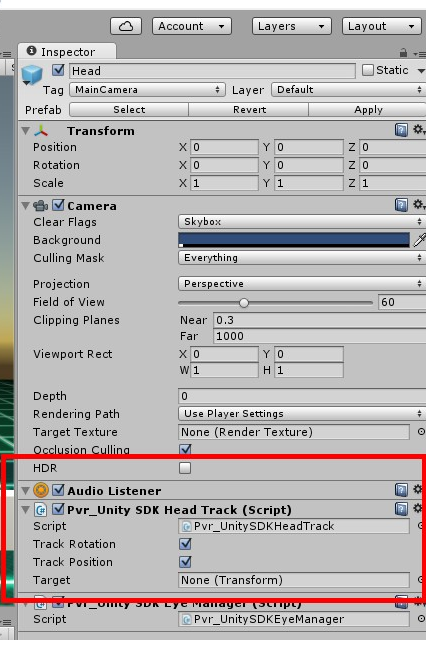
- Choose the objects you want to apply sensor, add PicoVRHeadTrack script.
10.4 What are the requirements on FPS and Scene in order to achieve a smoother effect in PicoNeo
FPS:
The FPS in PicoNeo scene cannot be below 30 frames and 45 frames and above are recommended.
Scenes:
Control the triangle slices of the model within 100,000
Control the number of vertex of the model within 100, 000
Control the number of regular unity lights such as electric light source within 50
Control the number of regular unity particle system within 50
Try to use more efficient unity shaders
Optimization examples:
Reduce the number of model slice anchor points while ensuring display
Try to share materials and animations
Try to use compressed texture formats
Use as little light effects as possible
Use static batch processing as much as possible
Optimize scripts to reduce unnecessary consumption of memory, computing and other resources.
10.5 How to replace the loading animation on app start
The loading animation replacement on app start is only available to Goblin and Pico Neo, which load the Pico proprietary loading interface before the app is open. If you want to use the default Unity loading interface or customize it, please open AndroidManifest, find platform_logo label and change the value of android:value to 1.

10.6 How to turn off the auto-connection to 3dof when running games on mobile phones
On regular mobile phones, after running Pvr_Controller Demo, the game will automatically search for controllers nearby and connect to the first Pico 3dof Controller it found and stop searching when connected. If it fails to connect, it will pop up a window after 15 seconds to prompt the user to search again or stop the search.
If you need to turn off the auto-connect feature, you only need to modify the bool isAutoConnect value to false in Pvr_ControllerLink.cs file.